









Budget
In Advanced Projects, you can choose from four different budget types depending on how you want to charge for your project. Each option gives you a different way to track time, costs, and revenue. These can be found by opening the Project > Main tab > Settings > Finance section > Budget Type picklist.
Below are the four budget types along with their description:
| Type | Description |
|---|---|
| Time only | Track how long a project takes without assigning a cost or revenue |
| Rate only | When you’ve agreed a rate for the project but haven’t defined a timeframe |
| Price only | When the Project has a fixed price. You can still record an expected timeframe, but the total price won’t change if the project takes more or less time |
| Time and Rate | When you’re charging based on both time and rate. You’ll define how long the Project is expected to take and how much each unit of time costs |
If you choose Time and Rate, you’ll see extra sections on the Main tab of your project:
- Progress
- Budget details
- Spent time details
- Approved delivery time details
These sections help monitor how the project is progressing and compare planned versus actual time/cost.
Adding Budget
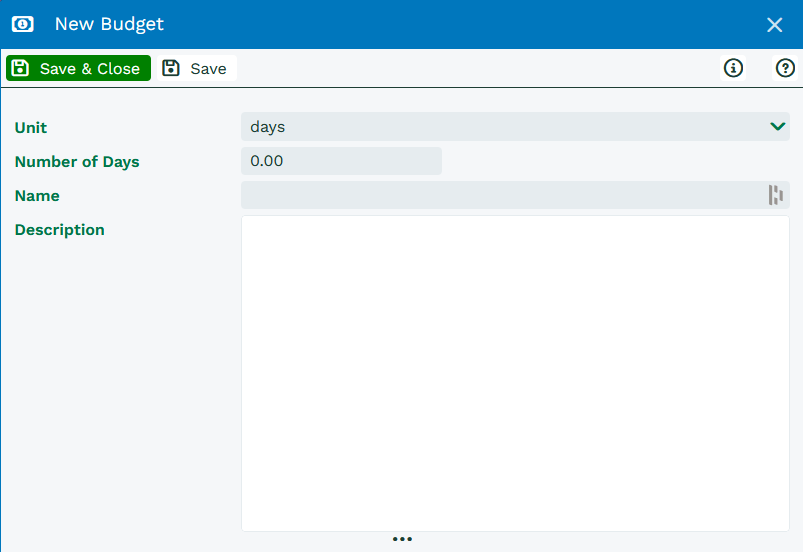
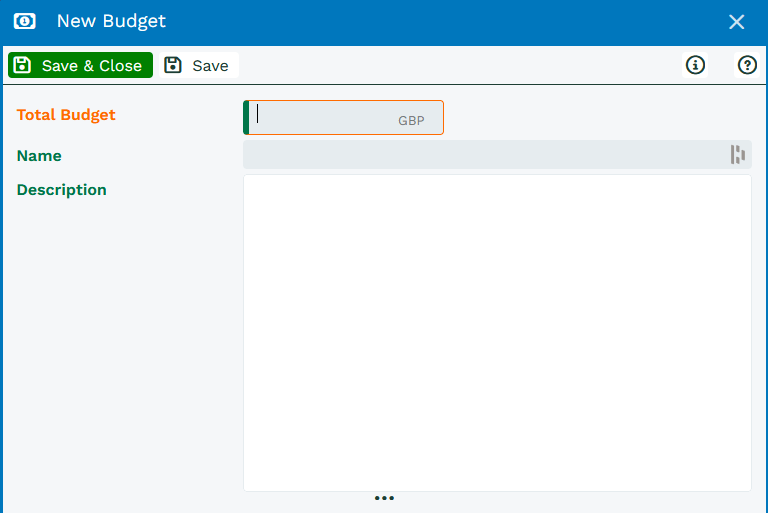
Depending on the Budget Type you’ve selected, you may need to add a Budget to your Project. This is done on the Budget tab by pressing ‘Add Budget’. The fields to populate will vary slightly depending on which ‘Type’ has been selected.
Time only and Rate only
Price only
Time and Rate
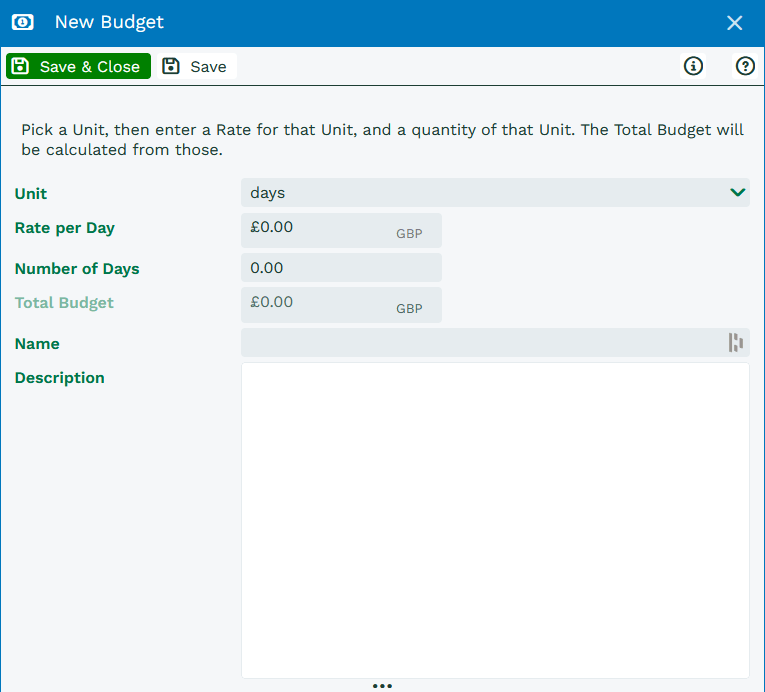
When using ‘Time and Rate’, you’ll be able to define:
- The unit used to measure time (for example, hours or days)
- The rate per unit
- The number of units
- A name and description for the budget
If you change the time unit, the rate and quantity will automatically update to match.
Tip
If you’re unsure which budget type to use, start by thinking about how you bill your customer. For example:
- Fixed fee - Price only
- Hourly or daily - Time and Rate
- Internal tracking only - Time only
Using Multiple Budgets
It’s possible to add more than one Budget to a Project. This is particularly useful if you’re charging different rates for different types of work. For example, you might charge one rate for standard days and another for specialist work.
You can also include non-billable time by setting the rate to 0. For example, if you’re offering free days, enter the number of days and set the rate to 0.
You can have multiple budget records. This can be used if you are charging a number of days at one rate and some days at another rate (if they are getting free days then you would state the number of days and put the rate as 0). Once the budget(s) has been set, when looking at Project Tasks, you can see the Total number of days, how many have been allocated and how many are remaining. These values automatically update when changes are made.
Once your budget(s) are set, the Project Tasks will show:
- Total number of days
- Allocated days
- Remaining days
These values update automatically as changes are made, so you can quickly see how the project is tracking
If you’re using a ‘Rate only’ Budget Type, you can add a single Budget. When creating the Budget, you’ll need to enter: Rate per unit, Name and Description.
Different rates for team members
In some cases, individual team members may have a different rates from the rest of the team depending on their job role or experience. You can update this in the Team tab by:
- Go to the Team tab on the project
- Select the team member you want to update
- Adjust their rate as needed
If you want to manage rates more broadly for example, team members share the same role and should use the same rate. You can also update them at a role level:
- Select Manage Roles
- Update the rate for the relevant role