









Knowledgebase articles
- Welcome to the Knowledge Base
- Training
- Introduction
- Welcome to Workbooks Support: Your Go-To Guide
- Getting Started
- Preferences
- Activities
- Cases
- Introduction to Cases
- Displaying & Adding Cases
- Managing Cases
- Using the Case Portal
- Email
- Importing Data
- Leads
- Marketing
- Introduction to Marketing
- Mailshots
- Templates
- Event Management
- Compliance Records
- Spotler Integration
- What is Spotler?
- Navigating your Spotler homepage
- Introduction to GatorMail
- GatorMail Configuration
- GatorMail Hard Bounces
- Sending Emails in GatorMail
- Advanced Features
- GatorCreator
- Setting up the Plugin
- Viewing Web Insights Data on your Form Layouts
- Domain Names and Online Activities
- Reporting incorrect Leads created through Web Insights
- Reporting on Web Insights data
- Using UTM Values
- Why aren’t Online Activities being created in the database?
- Why is GatorLeads recording online activities in a foreign language?
- GatorSurvey
- GatorPopup
- Dotdigital
- Integrations
- SFTP/FTP Processes
- Docusign Integration
- DocuSign Functionality
- Adobe Sign Integration
- Zapier
- Introduction to Zapier
- Available Triggers and Actions
- Linking your Workbooks Account to Zapier
- Posted Invoices to Xero Invoices
- Xero payments to Workbooks Tasks
- New Case to Google Drive folder
- New Case to Basecamp Project
- New Workbooks Case to JIRA Ticket
- Jira Issue to new Case
- 123FormBuilder Form Entry to Case
- Eventbrite Attendee to Sales Lead and Task
- Facebook Ad Leads to Sales Leads
- Wufoo Form Entry to Sales Lead
- Posted Credit Note to Task
- Survey Monkey responses to Tasks
- Multistep Zaps
- Email Integrations
- Microsoft Office
- Auditing
- Comments
- People & Organisations
- Introduction to People & Organisations
- Using Postcode Lookup
- Data Enrichment
- Reporting
- Using Reports
- Advanced Reporting
- Reporting FAQs
- Transaction Documents
- Displaying & Adding Transaction Documents
- Copying Transaction Documents
- Transaction Documents Fields Help
- Transaction Documents Line Items Help
- Printing & Sending Transaction Documents
- Managing Transaction Document Currencies
- Managing Transaction Document Statuses
- Setting a Blank Default Currency on Transaction Documents
- Credit Notes
- Customer Orders
- Invoices
- Quotations
- Supplier Orders
- Sagelink
- Configuration
- Releases & Roadmap
- Workbooks Glossary
Changing the size/colour of Map Pins
Within a report, you can customize the color and size of map pins using custom criteria. This is done through a calculated column, in the same way as other CSS styling.
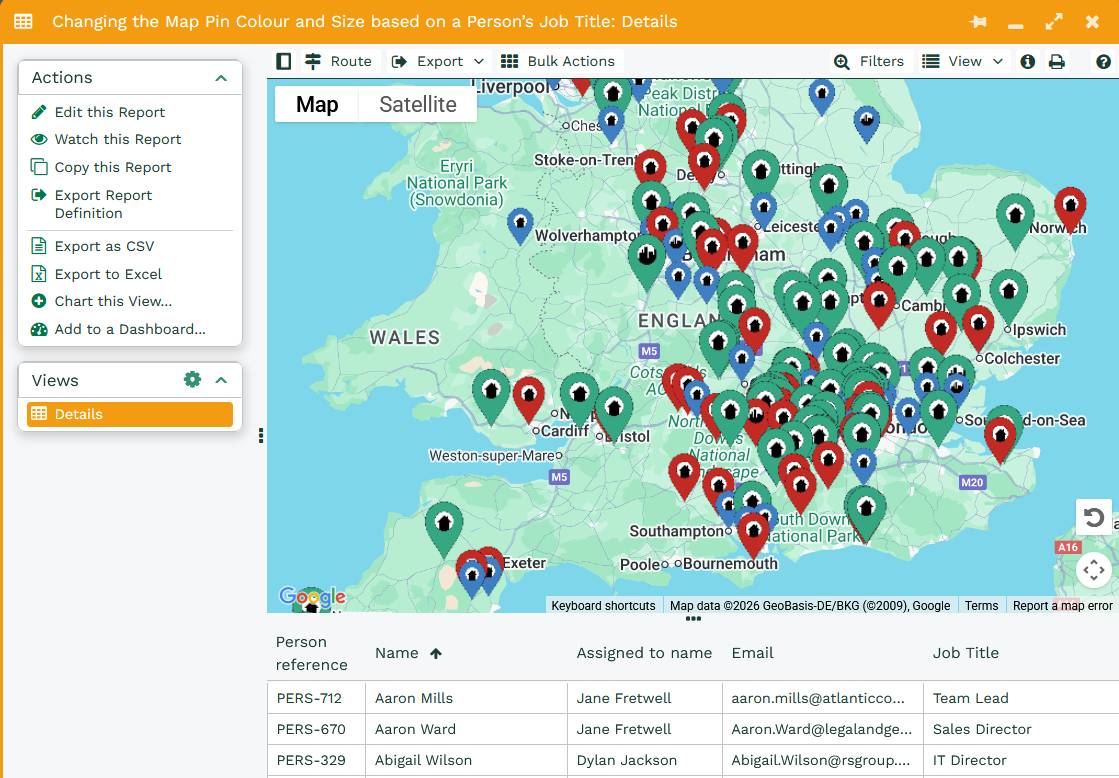
Color coding map pins is made of two parts:
- -wb-map-pin-color – this defines the color of the pin.
- -wb-map-pin-scale – this defines the size of the pin.
The colors are defined through Hexadecimal (Hex) values, a few examples include:
- Red: #c12e28
- Yellow: #edc20b
- Blue: #3f7ec1
- Green: #38a582
- Black: #1a1e25
- White: #ffffff
Note: For a complete guide on Hex colors, we recommend using W3 Schools. Alternatively, you can simply search ‘What’s the Hex code for’ in Google for the color code you’re looking for.
The Scale for the pin size can be set anywhere between 0.5 and 3. For example, to define a pin to be blue and standard sized, use:
“-wb-map-pin-color:#3f7ec1; -wb-map-pin-scale:1”
For a pin to be green and extra large, use:
“-wb-map-pin-color:#38a582; -wb-map-pin-scale:3”
The easiest way to set up color coding that depends on something like an Organizations type (Head Office or Subsidiary) or a Person’s Job Role, will be through a CASE statement such as below:
CASE
WHEN person_job_role = 'Director' THEN '-wb-map-pin-color:#38a582; -wb-map-pin-scale:1.2;'
WHEN person_job_role = 'Manager' THEN '-wb-map-pin-color:#c12e28;-wb-map-pin-scale:1;'
ELSE '-wb-map-pin-color:#3f7ec1;-wb-map-pin-scale:0.8;'
END
The above translates to;
- When the Person’s job title is Director then the Map Pin will be Green and Large
- When the Person’s job title is Manager then the Map Pin will be Red and Regular sized.
- Otherwise the pin will be blue and small.
To apply this formatting, open your Map Position report column > Style tab > change the Cell conditional style to ‘Calculated conditional styling’, then select your calculated column.
You can find a worked example of changing the color and size of the Map Pin based on a Person’s Job Title here.