












Force24 Processes
The script that actually communicates and makes updates on either sides.
Completing step – 3(Force24 Main tab) will automatically create a set of scheduled processes within Workbooks, communicating to Force24. Please see the processes and what they do below:
Force24 - Send People
This process will identify and sync new People to Force24 who have:
- A ‘true’ value in the ‘Sync with Mailer’ checkbox on People records.
- Email address is not blank
- Email address is not linked to another Force24 contact
- Force24 Contact ID is blank
It will also sync updated People to Force24 when:
- Force24 Contact ID is not blank
- ‘Update at’ is after the last sync
It will also detect deleted People if:
- Person is deleted in Workbooks and no other Person in Workbooks uses the same email address then the contact will delete in Force24
- If another Person record in Workbooks uses the same email address and the records are merged, it will update the Contact in Force24
Force24 - Retrieve People
This process will
- Fetch People from Force24 to Unsubscribe
- Create new People in Workbooks if new contacts are created in Force24 for example anyone who completes a form fill.
- Update the Force24 Lead Score field in Workbooks.
Force24 - Retrieve Activities
This process will:
- Sync campaign result data from Force24 and create Online Activities in Workbooks
- Create a ‘Shadow’ Mailshot to correspond with the Force24 campaign – This will help to easily identify Online Activities related to the Mailshot
- Fetch web activity and create Online Activities in Workbooks
- It will only fetch the Activity types as per the settings in the Force24 setup page
Force24 - Retrieve From Submissions
This process will:
- Create a Person or Sales Leads record based of the Parameter value entered for “New Workbooks Records For Contacts”.
- If the parameter “Always Create Leads” is set to TRUE it will create a Sales Lead record regardless of the fact that a Person or a Sales Lead record already exist in Workbooks.
- Create Online Activities of the type ‘Web Form Submission’.
Force24 - Send Mailing Lists
This process will:
- Sync ‘Mailing Lists’ from Workbooks and create ‘Marketing Lists’ in Force24
- Sync Members to Marketing Lists
- Adds new Members
- Removes deleted Members
Note : When creating a mailing list to sync with Force24, if the list is dynamic, say a member in the report no longer meets the criteria, they will be removed from the mailing list. This change will also be reflected in the Force24 mailing list.
However, if the Sync with Mailer option is enabled on that person’s record in Workbooks, that contact will still exist in Force24 even if they are removed from the mailing list, but it just won’t be included in the Force24-synced mailing list.
iFrame to Force24
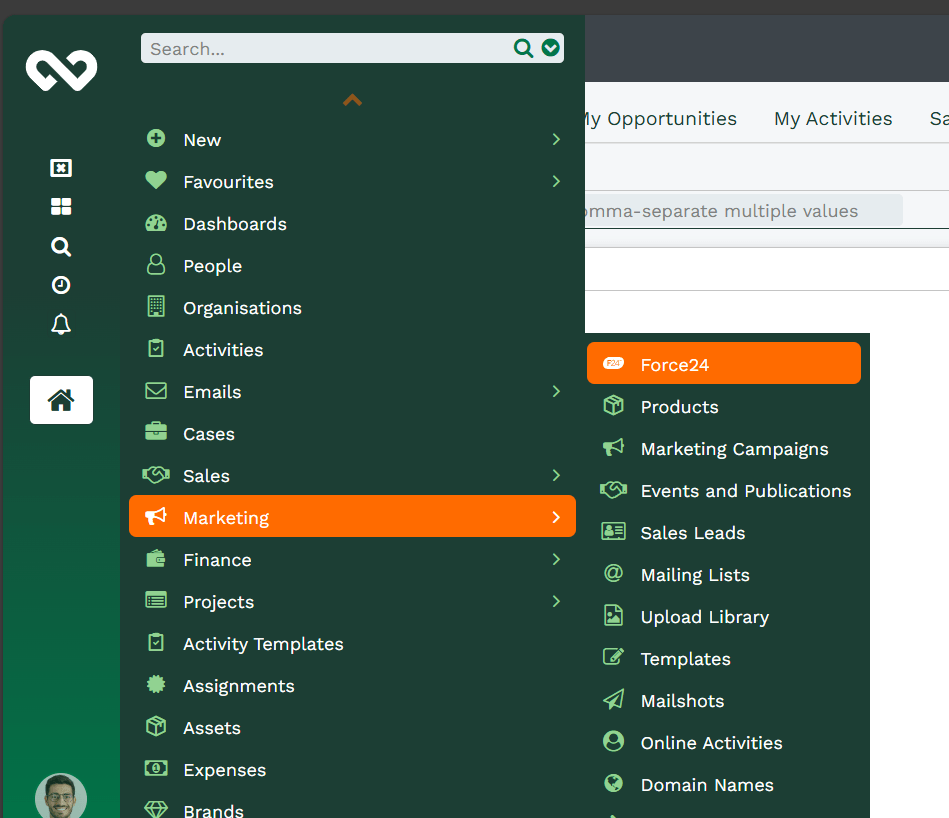
Navigate to Start > Marketing > Force24.
The iFrame allows access to Force24 within Workbooks and automatically logs Main users in using SSO.
Note
NOTE: You can also create new custom Contact fields either here or directly in Force24.
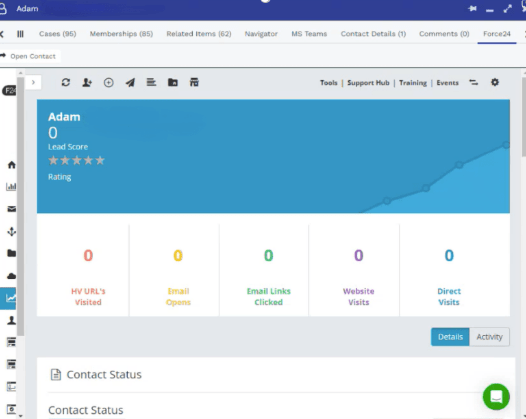
iFrame on Person Records
- Accessible through Person records under the Force24 tab.
- This eliminates the need to sync all campaign results back to Online Activities.
- The Activity option provides a timeline view of interactions.